
What does “Selected model is at capacity” mean?
“Selected model is at capacity. Please try a different model.” means the ChatGPT or Codex model you picked has no free room on OpenAI’s servers right now. It is not an account ban, and it is not your usage limit. Other models may still work. The fastest fix is to switch to another model. If you need that exact model, wait about 15 minutes and retry once.
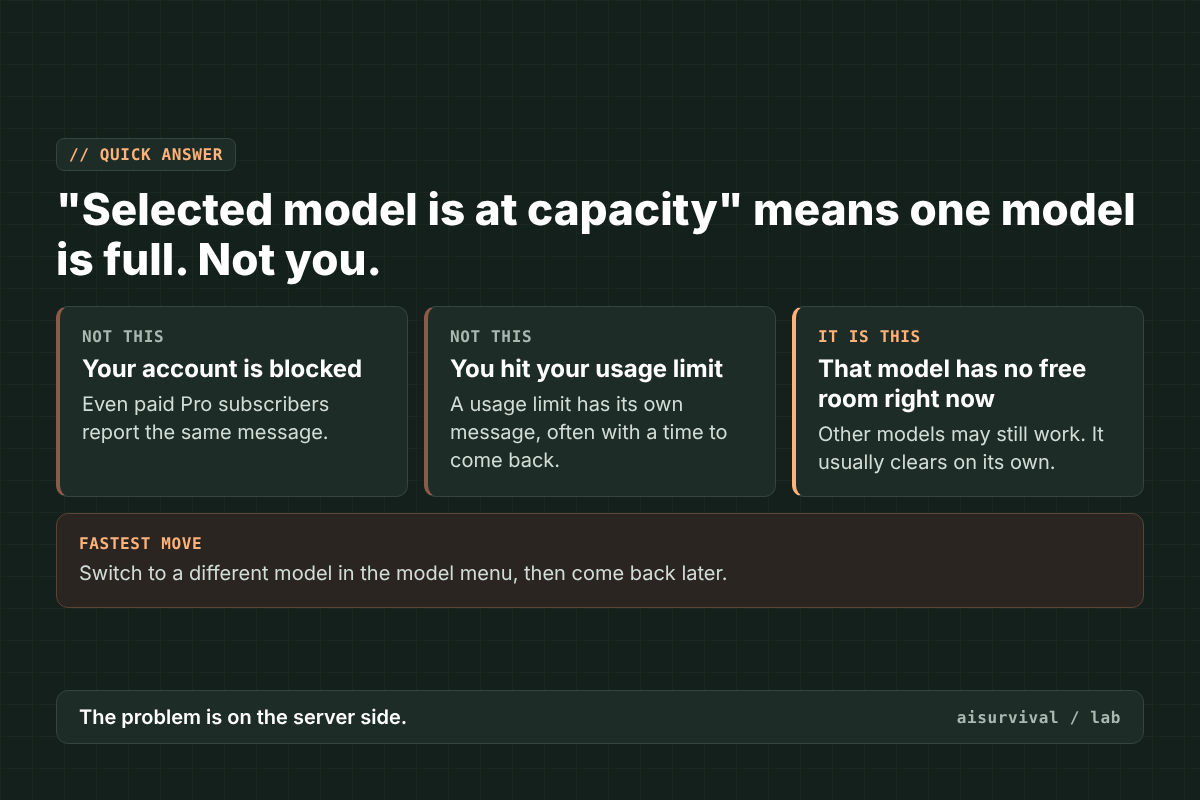
The error shows up in ChatGPT and in Codex, OpenAI’s coding agent. Paid Pro subscribers report it too, so upgrading is not a sure fix. Below: how to tell it apart from similar errors, six fixes in the right order, and a simple backup plan so your work does not stop the next time it happens.
On this page
- Why it happens
- Is ChatGPT down, or is it just this model?
- How to fix it (6 steps)
- Does upgrading to Pro fix it?
- What to do when you have work to finish
- Copy-and-paste prompts
- Checklist
- Limits of this guide
- FAQ
Why does ChatGPT say “Selected model is at capacity”?
ChatGPT shows “Selected model is at capacity” when too many people use one model at the same time. Each model runs on its own pool of servers. When that pool fills up, new requests to that model are turned away, while other models can still have room. It often happens during busy hours and after new model launches.
That is why the message itself says “try a different model.” It is telling you the problem is the model, not you.
A few facts from public reports:
- People have reported it on OpenAI’s community forum since at least April 2026, including on GPT-5.5 (thread).
- On June 16, 2026, OpenAI listed it as an official incident. It was found at 10:32 AM and marked fully recovered at 1:48 PM. It affected ChatGPT and four Codex parts (OpenAI status page).
- Later reports name newer models, such as GPT-5.6 Sol in Codex Desktop in July (thread) and GPT-6 Luna in October (thread).
- Pro subscribers report it in those threads. Paying more does not reserve room on a busy model.
Is ChatGPT down, or is it just this model?
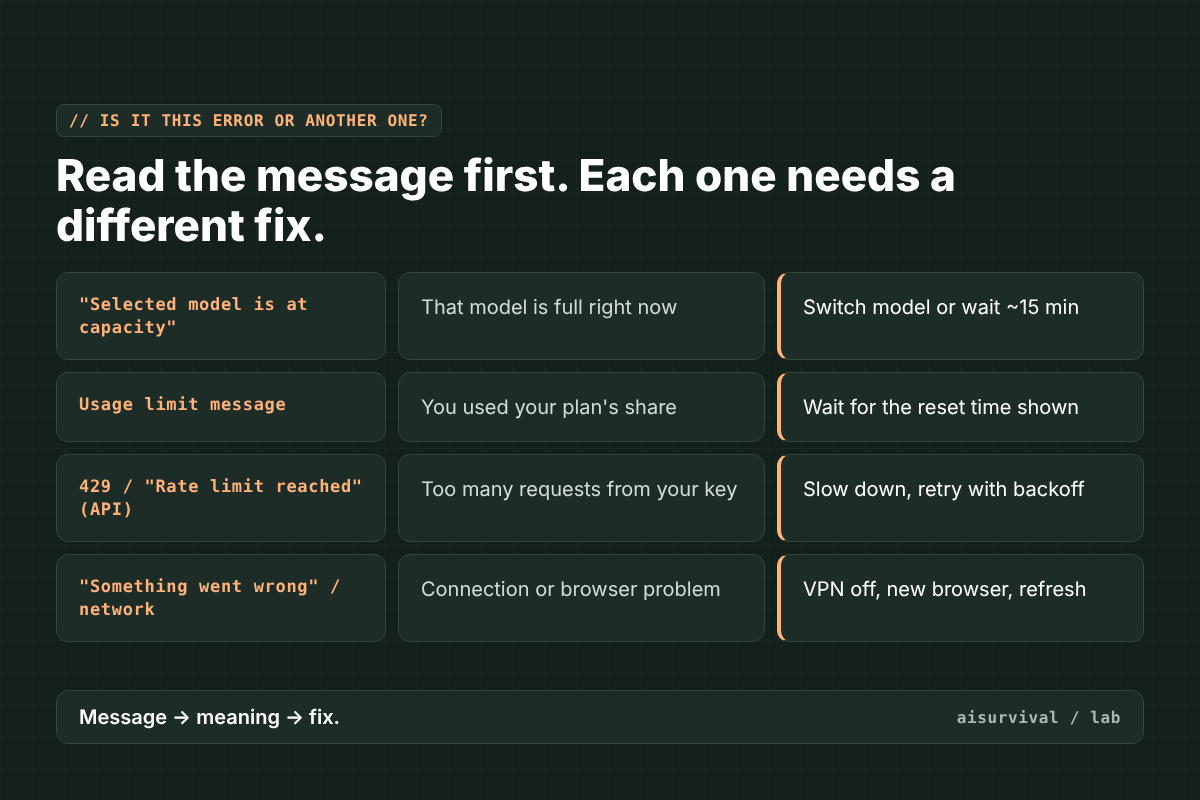
If you see “Selected model is at capacity,” ChatGPT is usually not fully down. Only the model you picked is full. To check for a wider outage, open status.openai.com. Other ChatGPT errors look similar but mean different things, like a usage limit or a network problem, so read the exact words before you try a fix.
| Message you see | What it means | What to do |
|---|---|---|
| “Selected model is at capacity” | That one model is full right now | Switch models, or wait about 15 minutes |
| A usage limit message | You used up your plan’s share for now | Wait until the reset time it shows |
| 429 or “Rate limit reached” (API users) | Your API key sent too many requests | Slow down and retry with longer gaps |
| “Something went wrong” or a network error | Often a browser, VPN, or connection problem | Follow OpenAI’s browser and network steps |
An older message, “ChatGPT is at capacity right now,” was common in ChatGPT’s early days when the whole service was full. Today’s message is more specific: it is about one model.
How to fix “Selected model is at capacity” (6 steps)
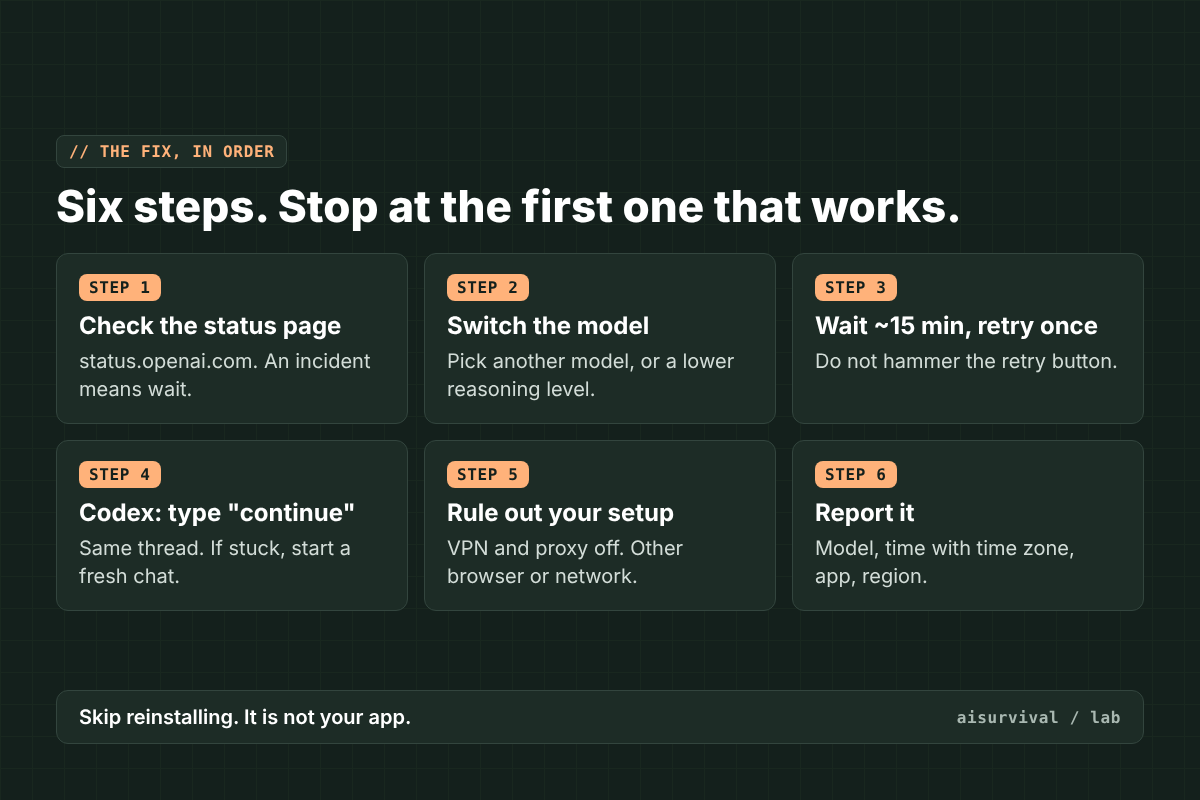
To fix “Selected model is at capacity,” go through these six steps in order and stop at the first one that works: check status.openai.com, switch to a different model, wait about 15 minutes and retry once, type “continue” if you are in Codex, turn off your VPN or try another browser, and report it to OpenAI if it keeps happening.
1. Check the status page
Open status.openai.com. If there is an active incident for ChatGPT or Codex, the fix is on OpenAI’s side. Waiting is your only option, so skip to the backup plan below.
2. Switch to a different model
Open the model menu and pick another one. If you were on a high reasoning level, try a lower one first. Users in the forum threads say this is the fastest way to keep working, even if the backup model is not quite as strong. In the Codex command line, the /model command lets you switch.
3. Wait about 15 minutes, then retry once
If you need that exact model, give it time. A forum helper and community guides both suggest a short wait of around 15 minutes. Retry once, not ten times. Tapping retry over and over does not get you a spot faster.
4. In Codex, type “continue”
If Codex stops in the middle of a task, send “continue” in the same thread. This asks it to pick up from where it stopped, with the work so far still in the thread. If the thread stays stuck, OpenAI Support has suggested starting a fresh chat with the same model (support reply).
5. Rule out your own setup
This error is usually not caused by your device. But if every model fails, check your side. OpenAI’s help page suggests turning off VPNs, proxies, and secure DNS tools, trying another browser or a private window, and trying another network (OpenAI Help Center).
6. Report it
If it keeps happening, tell OpenAI. Include the model name, the exact time with your time zone, which app you used (web, desktop, Codex), and your region. In Codex, OpenAI Support has asked users to send /feedback from the affected chat and share the ID it returns.
Should you wait for the same model or switch?
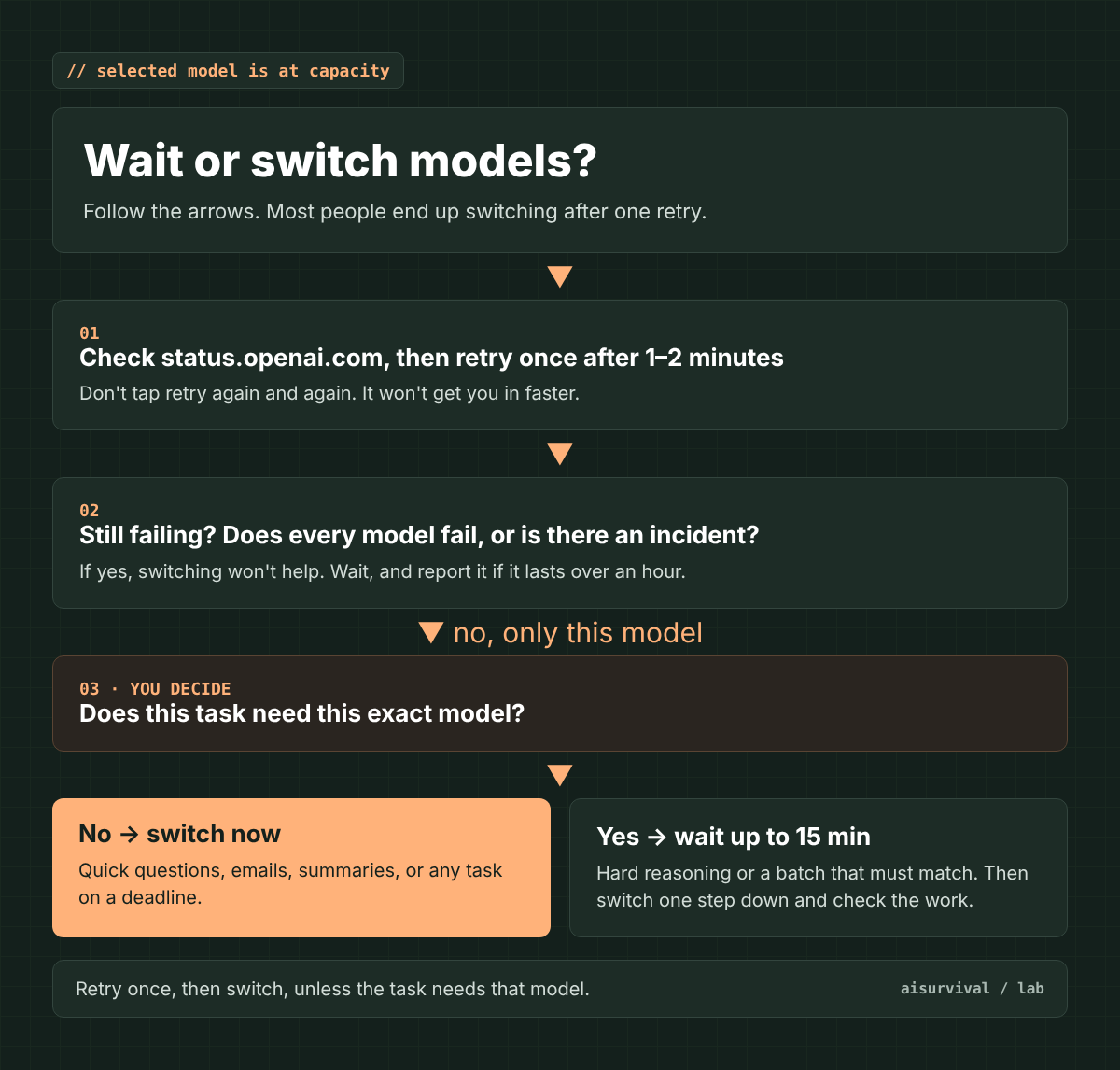
Retry once after a minute or two. If it fails again, switch, unless your work depends on that exact model. Switching isn’t free: a different model can reason less deeply, write in a different tone, or forget the rules you set. Waiting isn’t free either, because you can’t tell from the message whether it’ll clear in two minutes or three hours. So let the task decide.
| Your situation | Best move | Why |
|---|---|---|
| Quick question, email, summary, or brainstorm | Switch now | Almost any good model can do it. |
| You’re on a deadline | Switch now | A good-enough answer today beats a perfect one later. |
| Hard reasoning: math, logic, complex code, long analysis | Wait up to 15 minutes, then switch one step down | A weaker model may give a confident but wrong answer. Check its work. |
| A batch that must match (20 product descriptions, a slide series) | Wait, or switch and re-check the style | A new model can drift in tone or format halfway through. |
| Codex stopped mid-task after changing files | Check what changed before resending | Some work may already be done. Resending can repeat or undo it. |
| Every model fails, or there’s an incident on the status page | Wait | Switching won’t help. The problem is wider than one model. |
This matches community troubleshooting advice such as Aident’s Codex guide: switch when the error comes back after one retry a minute or two later and nothing shows on the status page. OpenAI’s own advice for “model temporarily overloaded” errors is to retry with growing gaps, not to hammer the server (OpenAI error codes guide).
How to switch without losing quality
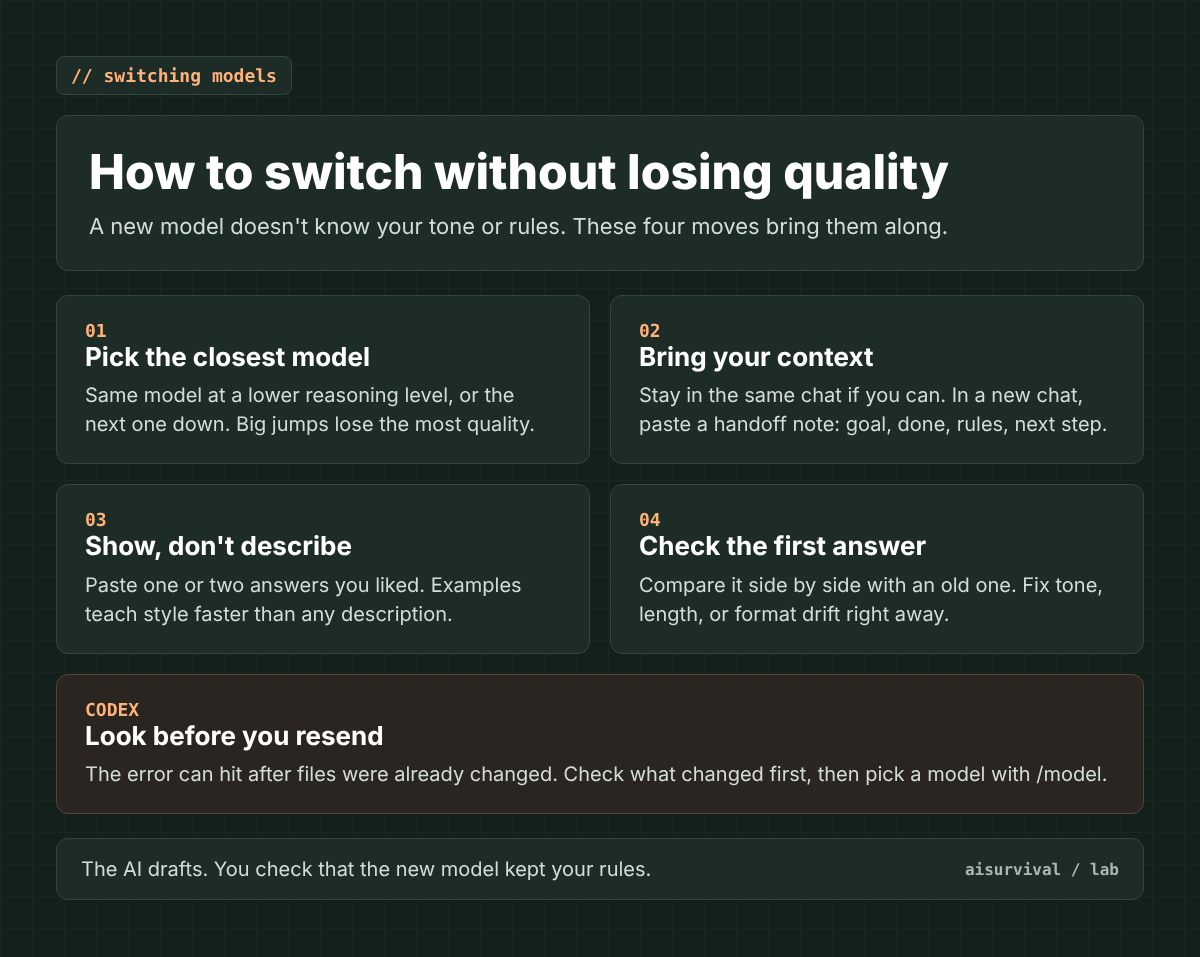
- Pick the closest model. The same model at a lower reasoning level, or the next one down in the same family. Big jumps to a much smaller model lose the most quality.
- Bring your context. Stay in the same chat if your app lets you change models there. In a new chat, paste a handoff note (Prompt 1 below).
- Show, don’t describe. Paste one or two earlier answers you liked and ask the new model to match them.
- Check the first answer. Compare it side by side with an old one and fix tone, length, or format drift right away.
- In Codex, look before you resend. The error can hit after Codex already ran commands or edited files, so check what changed (for example, with
git status) first (source).
Does upgrading to Pro fix it?
Upgrading to Plus or Pro does not reliably fix “Selected model is at capacity.” Pro subscribers report the same error on OpenAI’s community forum. A higher plan can raise your usage limits, but it does not reserve room on a busy model. Reinstalling the app or tapping retry over and over will not help either. Here is what to skip:
- Reinstalling the app. The model is full on the server. A fresh install does not change that.
- Upgrading just to fix this. A higher plan raises usage limits, not room on a full model.
- Spamming retry. One retry after a real wait is enough.
- Clearing your cache first. It is a fine step when every model fails or pages will not load. For this specific message, it is rarely the cause.
What to do when ChatGPT is at capacity and you have work to finish
When ChatGPT is at capacity and you have a deadline, switch to a backup model or a second AI tool and paste in a short handoff note: your goal, what is done, key decisions, and the next step. This lets you continue in about a minute instead of waiting. The steps below show how to set this up before you need it.
Most guides stop at “switch models.” That gets you through today. But if you use AI for real work, like client writing, product listings, or a planning doc, the error will come back. The useful question is: what happens to my work when my main AI tool is down?
Product teams answer this question for every key supplier. They keep a second source so one outage does not stop the line. You can do the same with AI in about ten minutes.
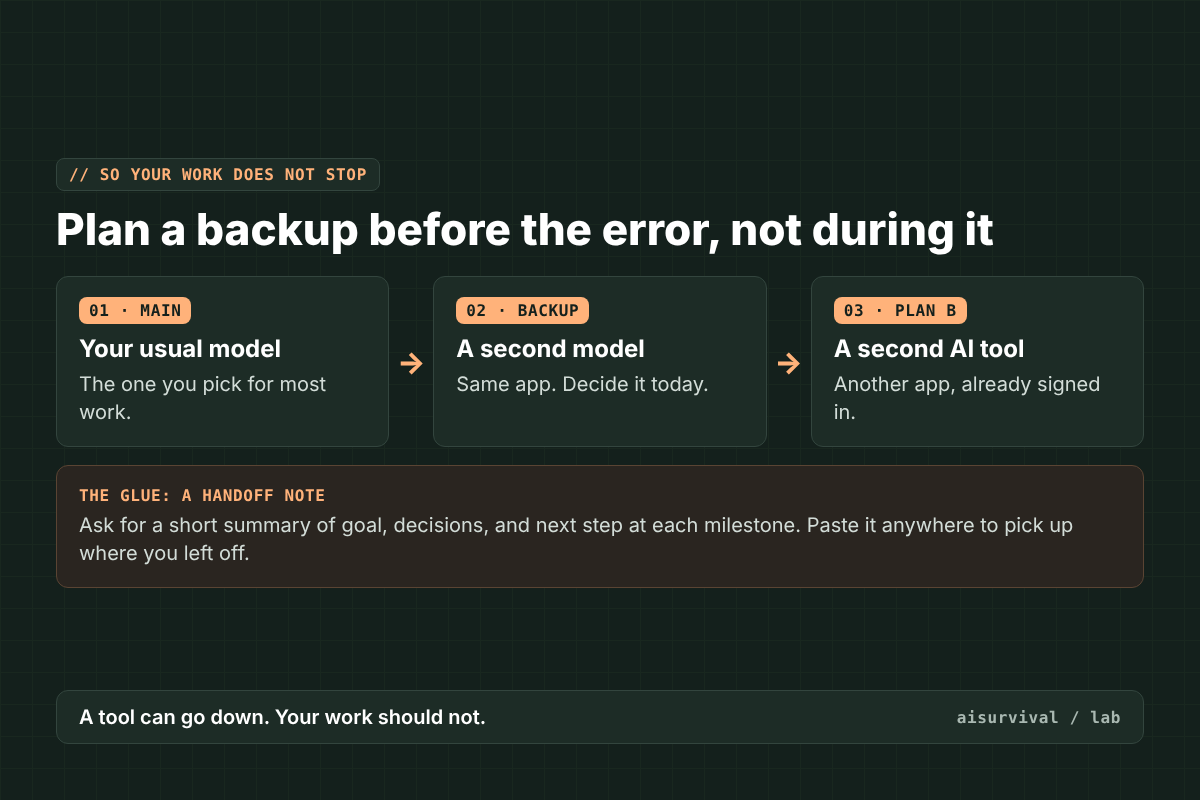
- Pick your backup model now. Decide which model in the same app you will switch to. Write it down. Deciding in the middle of an error wastes time.
- Pick a second AI tool. Choose another AI chat app and make sure you are already signed in. A backup you cannot log into is not a backup.
- Keep a handoff note. At each milestone, ask the AI for a short summary: the goal, what is done, key decisions, and the next step. Save it in a notes app. If a model goes down, paste the note into your backup and keep going.
- Break long tasks into steps. A long task that fails halfway loses more than a short one. Ask for the work in chunks, and save each chunk as you go.
The AI does the drafting. You decide where the work lives, so a tool outage never holds your work hostage.
Copy-and-paste prompts
How to use these prompts:
- Copy a prompt from a gray box below.
- Paste it into the chat you are working in.
- Replace anything in [brackets] with your own details.
- Save the answer in a notes app, not only in the chat.
- When a model is at capacity, paste the saved note into your backup model or tool.
Tip: run the handoff prompt before you hit a problem, at the end of each work session.
Prompt 1: Handoff note
Write a handoff note for this conversation so another AI assistant can continue the work without seeing this chat.

Use these headings:
1. Goal: what we are trying to make, in one sentence
2. Done so far: a short list
3. Key decisions and why
4. Rules to keep: tone, format, length, words to avoid
5. Next step: the very next thing to do
6. Open questions I still need to answer

Keep it under 250 words. Do not add anything we did not discuss.
Prompt 2: Pick up where I left off
I was working on a task with another AI assistant. Here is the handoff note:

[paste handoff note]

Read it, then:
1. Repeat the goal and the next step in one sentence each, so I know you understood.
2. List anything in the note that is unclear.
3. Wait for my OK before you continue the work.
Prompt 3: Break a long task into safe chunks
I need help with this task: [describe task].

Before you start, split it into 3 to 6 small steps that can each be finished in one reply. Show me the list. Then do only step 1. At the end of each step, give me a two-line summary I can save, so I can restart from any step if the chat stops.
Example: a shop owner mid-batch (fictional)
This example is made up to show the method. A small online shop owner is writing 20 product descriptions with AI. She asks for them in batches of five, using Prompt 3. After each batch, she saves the descriptions and the two-line summary. On batch three, the model shows “Selected model is at capacity.” She switches to her backup model, pastes the last summary, and keeps going. She loses one reply, not the whole afternoon.
Checklist
- I read the exact error text before trying fixes.
- I checked status.openai.com.
- I know which backup model I will switch to.
- I am signed in to a second AI tool.
- I saved a handoff note for my current project.
- Long tasks are split into steps I can restart.
- If it keeps happening, I report the model, time, time zone, app, and region.
Limits of this guide
- We did not reproduce this error on purpose. The fixes come from OpenAI’s status page, OpenAI’s help center, OpenAI Support replies, and user reports on the OpenAI community forum.
- OpenAI has not published a full explanation of how model capacity works. Some advice, like waiting about 15 minutes, comes from community experience, not an official rule.
- Model names change often. The models named here are the ones in the public reports we checked on November 3, 2026.
- Some users report that a VPN in another region helped. Others say it made no difference, and OpenAI’s own troubleshooting advice is to turn VPNs off. We do not recommend it.
- Tool features change. Check OpenAI’s help center for the latest steps.
FAQ
Does “Selected model is at capacity” mean my account is banned?
No. It means the model you chose is full right now. Account problems and usage limits have their own messages.
How long does “Selected model is at capacity” last?
It varies. Many cases clear within minutes. The official June 16, 2026 incident lasted a little over three hours. Some users report it coming back on and off for days.
Is it the same as “ChatGPT is at capacity right now”?
Not quite. That older message meant the whole service was full. The new one is about one model, which is why switching models often works.
Why does Codex say “Selected model is at capacity” in the middle of a task?
Codex sends many requests during a long task. If the model fills up partway through, the next request fails. Send “continue” in the same thread, or split long tasks into smaller steps.
Should I use a VPN to get around it?
We do not recommend it. Results are mixed, and OpenAI’s help center suggests turning VPNs off when you troubleshoot. Switching models is safer and usually faster.
Keep going
This post is part of our PM Frameworks series: how to plan and run work as a team of one, with AI as your teammate. A teammate that can be “out sick” needs a backup plan, and now you have one. For more on planning with AI, start with our product planning hub.
Want the next guide in this series? Subscribe below and we will send new posts on working with AI as a team of one.
Your turn: Which AI error stops your work most often? Tell us in the comments, and we may turn it into the next guide.
Sources
- OpenAI Status: Codex “Selected Model is at Capacity” Error (June 16, 2026)
- OpenAI Help Center: Troubleshooting ChatGPT error messages
- OpenAI Community: GPT-6 Luna thread with OpenAI Support reply (Oct 2026)
- OpenAI Community: GPT-5.6 Sol in Codex Desktop (July 2026)
- OpenAI Community: GPT 5.5 thread (April 2026)
- Developers Digest: Codex CLI error page