
Updated November 13, 2026: added a step-by-step section for Codex.
What does {“detail”:”Bad Request”} mean in ChatGPT?
{“detail”:”Bad Request”} means OpenAI’s server refused the request your chat sent. It is a general “400” error, not an account ban and not a full model. When it shows up after every prompt, the chat itself is usually the problem: it has grown very long, or it holds many images, screenshots, or files. The fastest fix is to start a new chat.
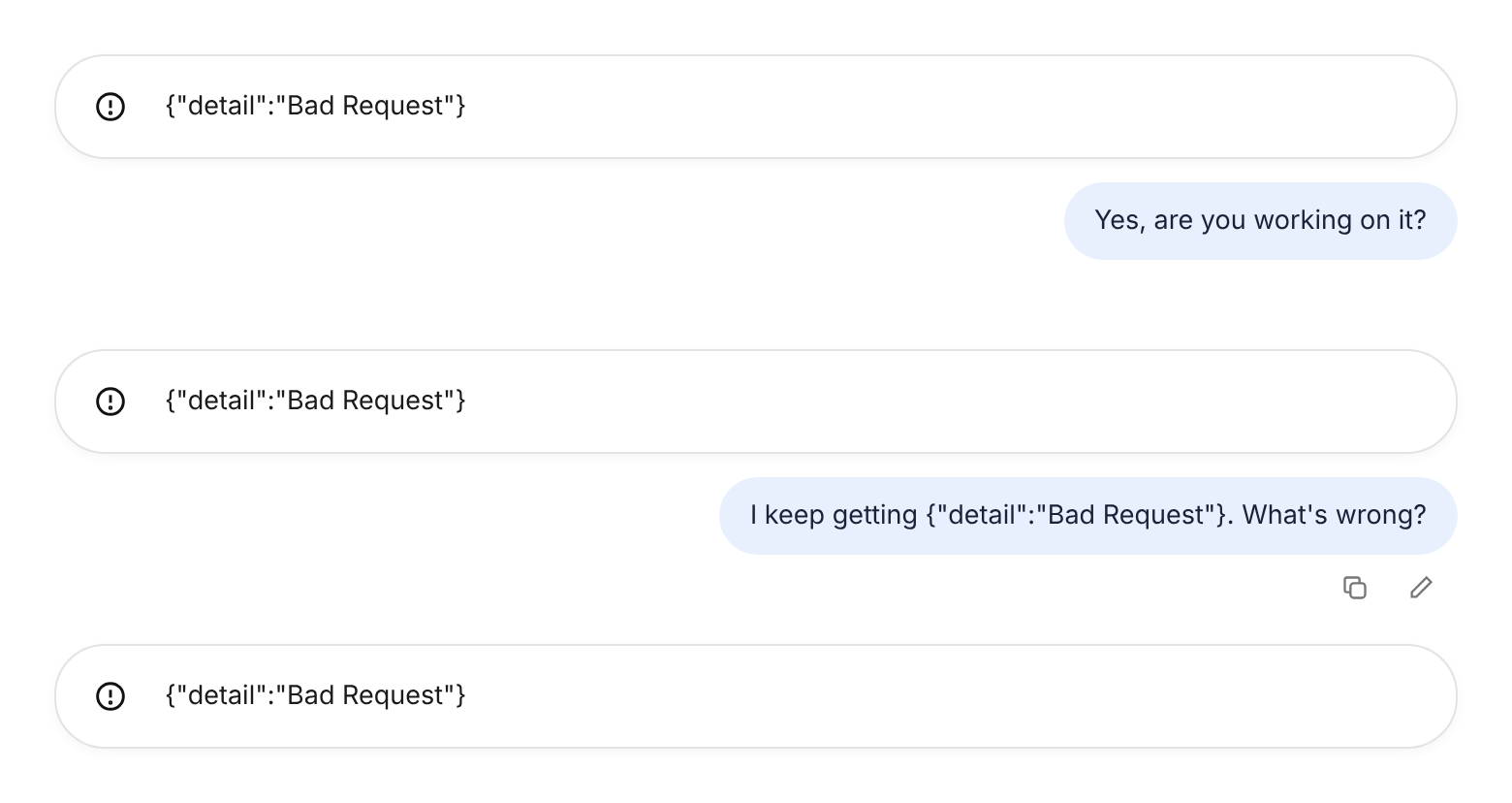
I ran into this error myself. I am building a website as a side project, and I was asking ChatGPT to help revise the UI design. Then every reply came back as the same message: {“detail”:”Bad Request”}. It looked like the screenshot below.
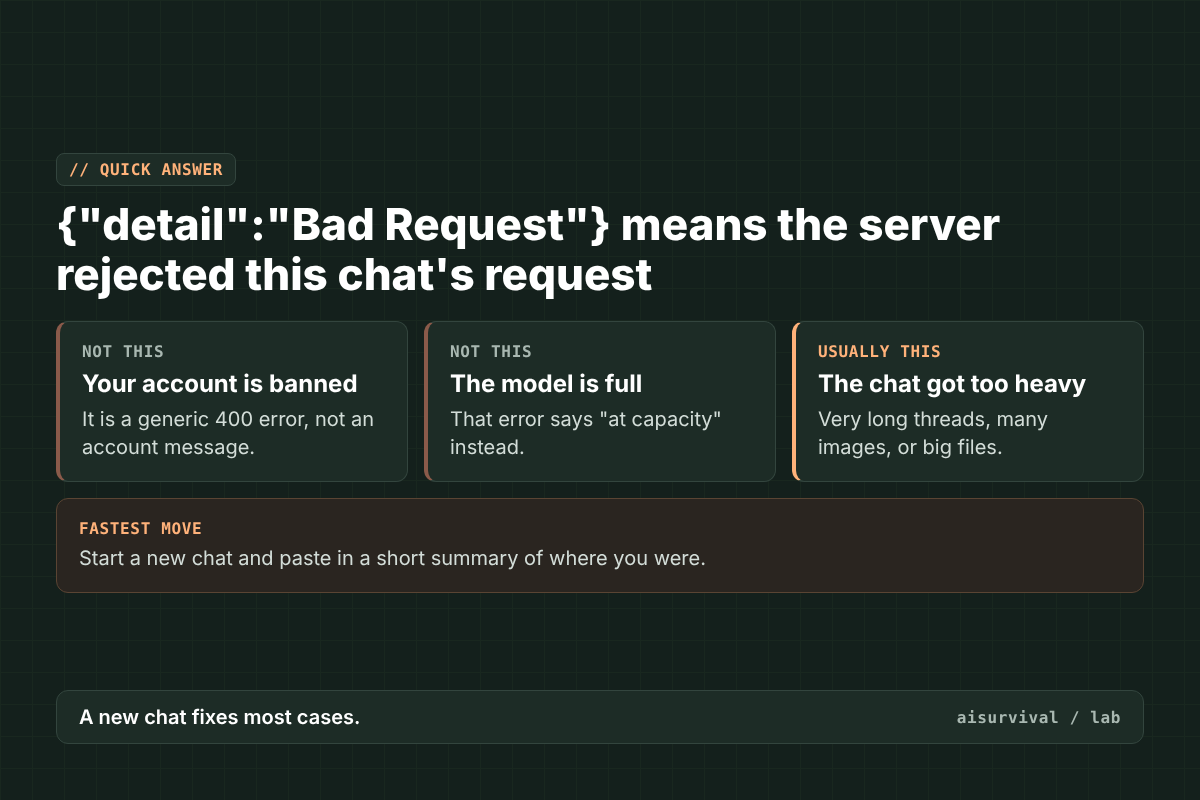
Most public reports come from the ChatGPT desktop app’s Work mode and from Codex, OpenAI’s coding agent. Below: why it repeats, how to tell it apart from similar errors, six fixes in order, and how to avoid losing your work next time.
On this page
- Why it happens after every prompt
- What causes it
- Bad Request vs. other ChatGPT errors
- How to fix it (6 steps)
- How to fix it in Codex
- How to avoid losing your work
- Copy-and-paste prompts
- Limits of this guide
- FAQ
Why does ChatGPT show “Bad Request” after every prompt?
ChatGPT shows “Bad Request” after every prompt because each new message is sent along with the chat so far. If something in that history makes the server reject the request, such as an extremely long thread or a pile of large images, every new message carries the same problem and fails the same way. That is why retrying in the same chat rarely helps.
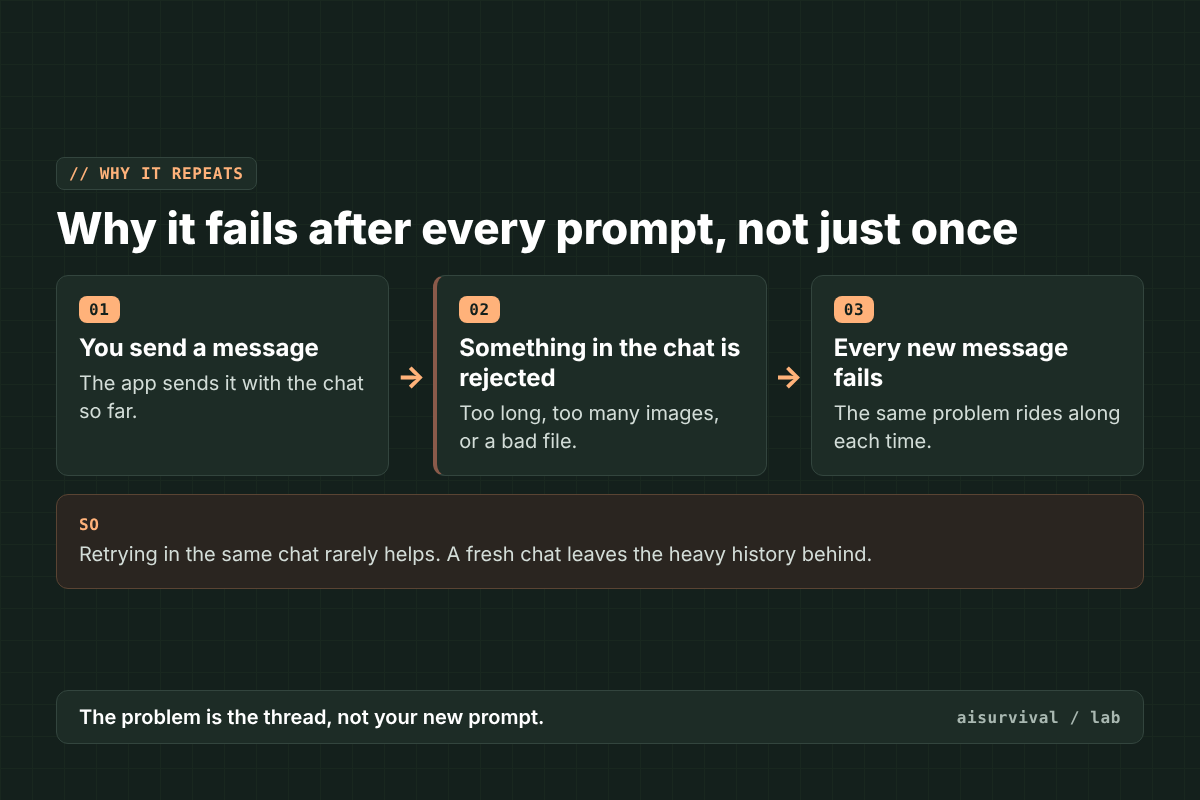
Your new prompt is usually fine. The old chat is what breaks it.
What causes {“detail”:”Bad Request”}?
OpenAI has not published one confirmed cause for {“detail”:”Bad Request”}. An OpenAI engineer said it “appears to be correlated to unusually long sessions and/or user prompts.” User reports point to the same few patterns: very long chats, many images or screenshots, large files, and sometimes one specific model or a recent app update.
- A very long chat. In OpenAI’s community forum, one user saw the error in a Work chat they had used daily for about a month (thread). An OpenAI engineer linked the error to unusually long sessions (GitHub).
- Many images or screenshots. One Codex user found that image data had piled up in a thread. Removing it stopped the errors in that thread (GitHub). Another saw it after Codex looked at a large folder of images (GitHub).
- One specific model. Some users say the error showed up on one model but not another.
- A recent app update. The Work-mode report says the trouble began around a desktop app update.
- Browser or login problems (web). In the browser, a stale login, old cookies, or an extension can also make requests fail (GeeksforGeeks).
A full chat window is not always the reason. One Codex user hit the error with only about half of the model’s memory used.
Is “Bad Request” the same as “Request too large” or “at capacity”?
No. “Bad Request” means the server refused the request as it was sent. “Request too large” means one message or file is too big. “Selected model is at capacity” means the model is busy. “Something went wrong” often points to your browser or network. Each one needs a different fix, so read the exact words before you try anything.
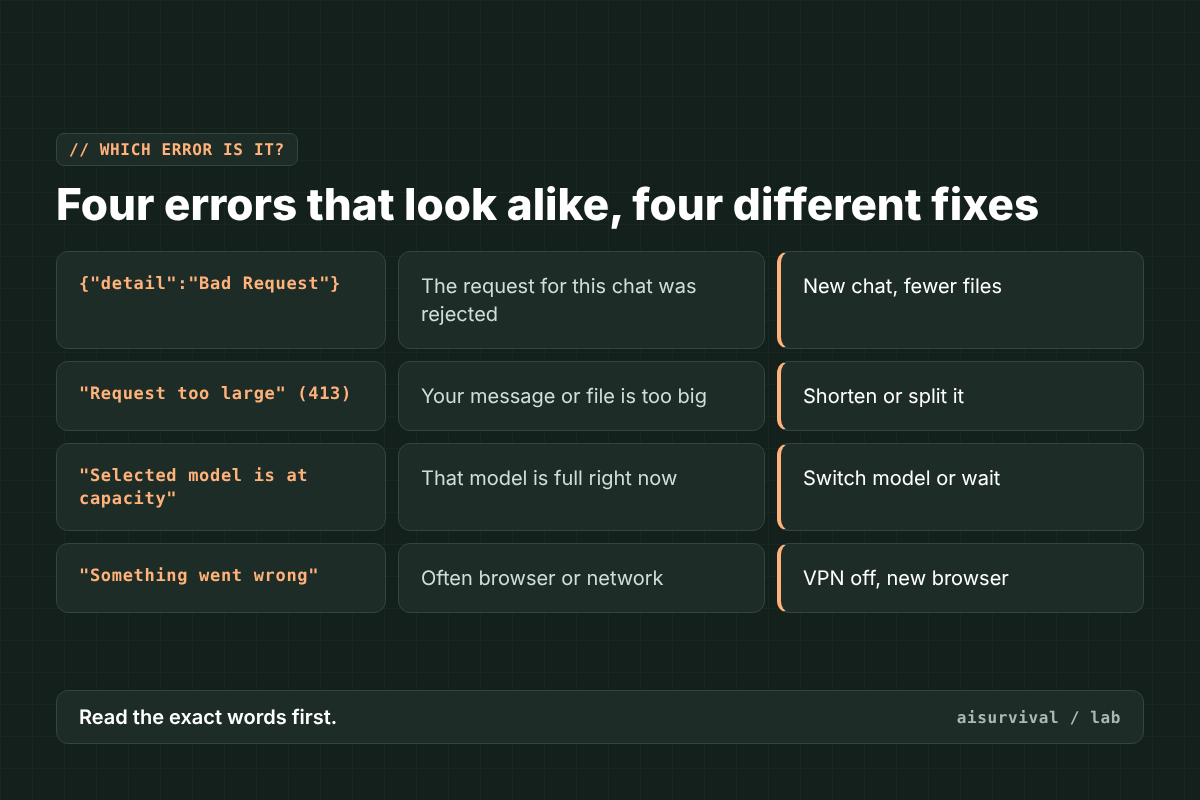
| Message you see | What it means | What to do |
|---|---|---|
| {“detail”:”Bad Request”} | The request for this chat was rejected | Start a new chat, use fewer files |
| “Request too large” (413) | One message or file is too big | Shorten or split it |
| “Selected model is at capacity” | That model is full right now | Switch model or wait |
| “Something went wrong” | Often a browser or network problem | Turn off VPN, try another browser |
If you see the capacity message instead, read our guide to “Selected model is at capacity”. If a reply starts and then stops with “Error in message stream,” see our guide to ChatGPT “Error in message stream”.
How to fix {“detail”:”Bad Request”} (6 steps)
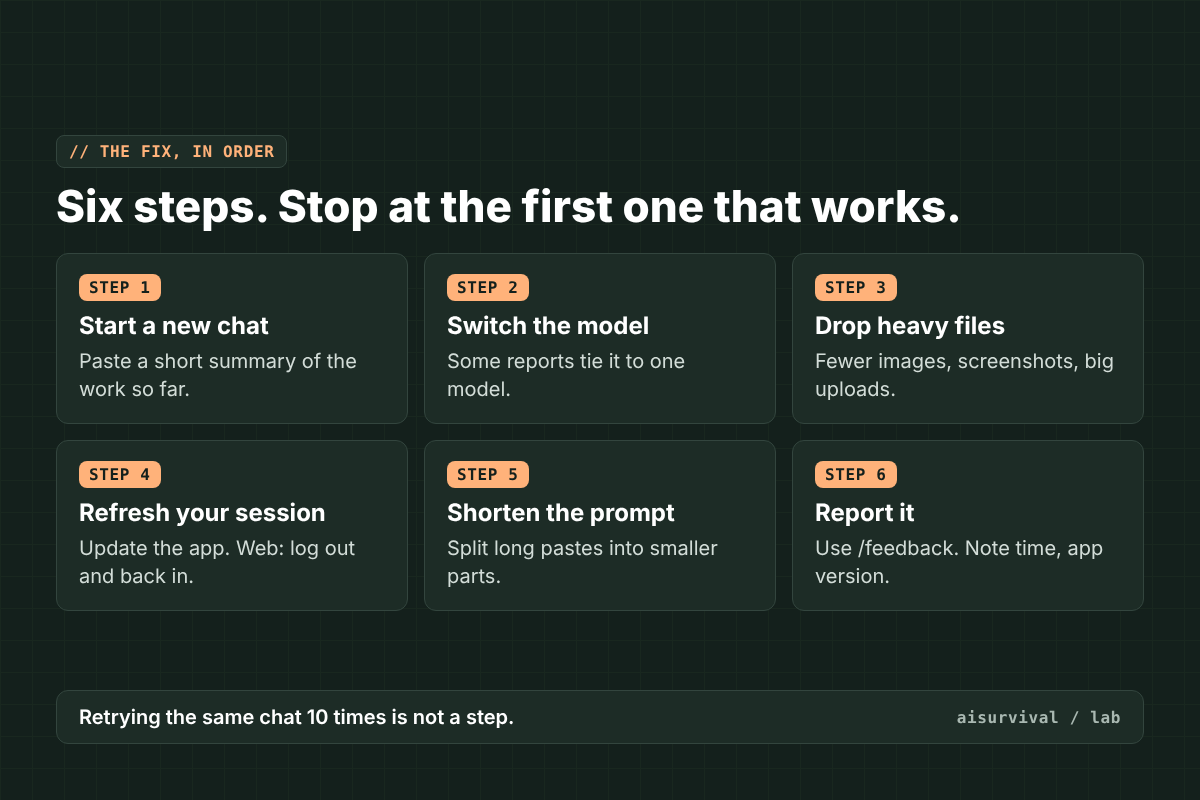
To fix {“detail”:”Bad Request”}, go through these steps in order and stop at the first one that works: start a new chat with a short summary of your work, switch to another model, remove heavy images or files, refresh your app or login, shorten your prompt, and report it to OpenAI with /feedback if it keeps happening.
1. Start a new chat
This is the fix that works most often in user reports. A new chat leaves the heavy history behind. The catch: you cannot ask the broken chat for a summary, because every prompt fails. So copy the key parts yourself (the goal, the latest version of your work, and any rules), and paste them into the new chat with Prompt 2 below. In Codex, the /new command starts a fresh session.
2. Switch to a different model
Some users say the error appeared on one model and went away on another. If you must stay in the same chat, try a different model from the model menu. Results are mixed, so do not spend long on this step.
3. Remove heavy images and files
Many reports involve screenshots, image folders, or big uploads. In the new chat, attach only the files you need right now. In Codex, avoid pointing it at one folder full of images. One user fixed it by splitting images into smaller folders, and another by removing the image files and starting a new session.
4. Refresh your app or login
Update the desktop app or the Codex tool to the latest version, then restart it. In a browser, log out and back in, try a private window, and turn off extensions. OpenAI’s help page also suggests turning off VPNs and proxies and trying another browser or network (OpenAI Help Center).
5. Shorten your prompt
If one huge paste triggers the error even in a new chat, split it into smaller parts. Send the first part, wait for the answer, then send the next.
6. Report it
If it keeps happening, tell OpenAI. In Codex, an OpenAI engineer asked users to run /feedback and share the thread ID so the team could look into it. Include the time with your time zone, the app and version, and the model.
What usually does not help
- Retrying in the same chat over and over. The same history goes along each time.
- Turning off your VPN, if you are in Codex. One reporter saw it with and without a VPN. It is still worth checking in a browser.
- Shrinking the chat with /compact. Some Codex users said this did not fix it.
How to fix {“detail”:”Bad Request”} in Codex
In Codex, OpenAI’s coding agent, {“detail”:”Bad Request”} usually shows up in long sessions or in threads that hold a lot of image data. The idea is the same as in ChatGPT: leave the heavy history behind. Try these in order.
- Start fresh with
/new. A new session drops the long history of tool calls, files, and images. - Keep images in small batches. Do not point Codex at one folder full of images. Users fixed it by splitting images into smaller folders, or by removing the image data from the thread.
- Update and restart. Install the latest version of the Codex tool, then restart it.
- Close and reopen the thread. Some users got a thread working again this way. Others did not, so copy what you need first.
- Report it with
/feedback. Share the thread ID, the time with your time zone, the version, and the model.
What usually does not help in Codex, according to user reports: shrinking the chat with /compact, and turning off your VPN.
How do I avoid losing my work to a Bad Request error?
To avoid losing work, keep each chat to one task and start a new chat when the task changes. Save a short handoff note (goal, what is done, decisions, next step) outside the chat at the end of each session. If a chat breaks, you paste the note into a new chat and continue in a minute instead of rebuilding from memory.
- One task per chat. A chat used daily for weeks is the classic setup for this error.
- Save the handoff note before you need it. Once the error starts, the chat cannot write the note for you.
- Keep final versions outside the chat. Paste finished work into a doc or notes app as you go.
- Go easy on screenshots. Attach images when they help, not by default.
The AI does the drafting. You decide where the work lives, so one broken chat never takes the whole project with it.
Copy-and-paste prompts
How to use these prompts:
- Copy a prompt from a gray box below.
- Use Prompt 1 in a chat that still works, at the end of each session.
- Save the answer in a notes app, not only in the chat.
- If a chat breaks, open a new chat and use Prompt 2.
- Replace anything in [brackets] with your own details.
Tip: if you never saved a note, Prompt 2 still works with whatever pieces you can copy from the old chat.
Prompt 1: Save a handoff note (while the chat still works)
Write a handoff note for this chat so I can continue in a new chat if this one stops working.

Use these headings:
1. Goal: what we are making, in one sentence
2. Latest version: the most recent full draft or result
3. Decisions and rules: tone, format, things to avoid
4. Next step: the very next thing to do
5. Files I need to re-attach

Keep it under 300 words, plus the latest version. Do not add anything we did not discuss.
Prompt 2: Restart in a new chat
My last chat stopped working, so I am moving the work here. Below is what I saved from it:

[paste your handoff note, or the pieces you copied]

Please:
1. Restate the goal and the next step in one sentence each.
2. List anything that is missing or unclear.
3. Wait for my OK before you continue.
Prompt 3: Send a long paste in parts
I am going to send a long text in [number] parts. After each part, reply only with "Got part X." Do not answer yet. When I send "All parts sent," do this task: [describe task].

Part 1:
[paste part 1]
Example: a month-long planning chat (fictional)
This example is made up to show the method. A small shop owner uses one ChatGPT chat for a month to plan a product launch, with dozens of screenshots. One morning, every prompt returns {“detail”:”Bad Request”}. She opens a new chat, pastes the handoff note she saved on Friday, and re-attaches only the two images she needs today. She is back to work in a few minutes.
Limits of this guide
- We did not reproduce this error on purpose. The causes and fixes come from OpenAI’s GitHub issues, the OpenAI community forum, and OpenAI’s help center.
- OpenAI has not confirmed a single cause. The links to long chats and images are patterns in user reports and one engineer’s comment, not an official rule.
- Most reports come from the desktop app’s Work mode and from Codex. The browser steps come from general troubleshooting advice.
- Apps change fast. We checked these reports on November 4, 2026.
FAQ
Does {“detail”:”Bad Request”} mean my ChatGPT account is banned?
No. It is a general error that means one request was refused. Account problems come with their own messages. If a new chat works, your account is fine.
Why does a new chat work when the old one does not?
Each message is sent with the chat’s history. A new chat has no heavy history, so the request is small and clean. The old chat keeps sending the same problem along.
Can I recover the old chat?
Sometimes. Some Codex users got a thread working again after closing and reopening it, or after removing image data. Others could not. Copy what you need from the old chat before you try anything else.
Why does Codex show {“detail”:”Bad Request”} in long sessions?
Long Codex sessions build up a big history of tool calls, files, and images. An OpenAI engineer said the error appears linked to unusually long sessions or prompts. Start a fresh session with /new and keep image-heavy work in smaller batches.
Is ChatGPT down when I see Bad Request?
Usually not. If a new chat works, the service is up. To check for an outage, open status.openai.com.
Keep going
This post is part of our AI Tool Fixes series on working as a team of one with AI as your teammate. For another common error, see “Selected model is at capacity”: what it means and 6 fixes.
Want the next guide in this series? Subscribe below and we will send new posts on working with AI as a team of one.
Your turn: Which ChatGPT error should we explain next? Tell us in the comments.
Sources
- GitHub openai/codex #12119: {“detail”: “Bad Request”} (OpenAI engineer comment, Feb 2026)
- GitHub openai/codex #10571: “Bad request” error
- GitHub openai/codex #13374: Bad Request in most threads
- OpenAI Community: Repeated “Bad request” errors in Work chat (Nov 2026)
- OpenAI Help Center: Troubleshooting ChatGPT error messages
- GeeksforGeeks: How to fix the ChatGPT 400 Bad Request error