
Updated November 2026 · Practical paperback formatting guide · Official KDP documentation linked below.
A paperback can look perfect on your computer and still fail print preview. The most common causes are not creative mistakes: they are mismatched trim sizes, insufficient margins, incorrectly configured bleed, or low-resolution artwork. This guide explains how to make those decisions before you export your interior.
Start with three decisions
- Trim size: the final physical width and height of your printed page.
- Bleed: whether artwork reaches the trimmed edge of the page.
- Page count: a key input for the minimum inside (gutter) margin.
Make these choices before designing dozens of pages. Changing them later can move text, crop illustrations, and force a complete layout review.
Bleed vs. no bleed: which should you use?
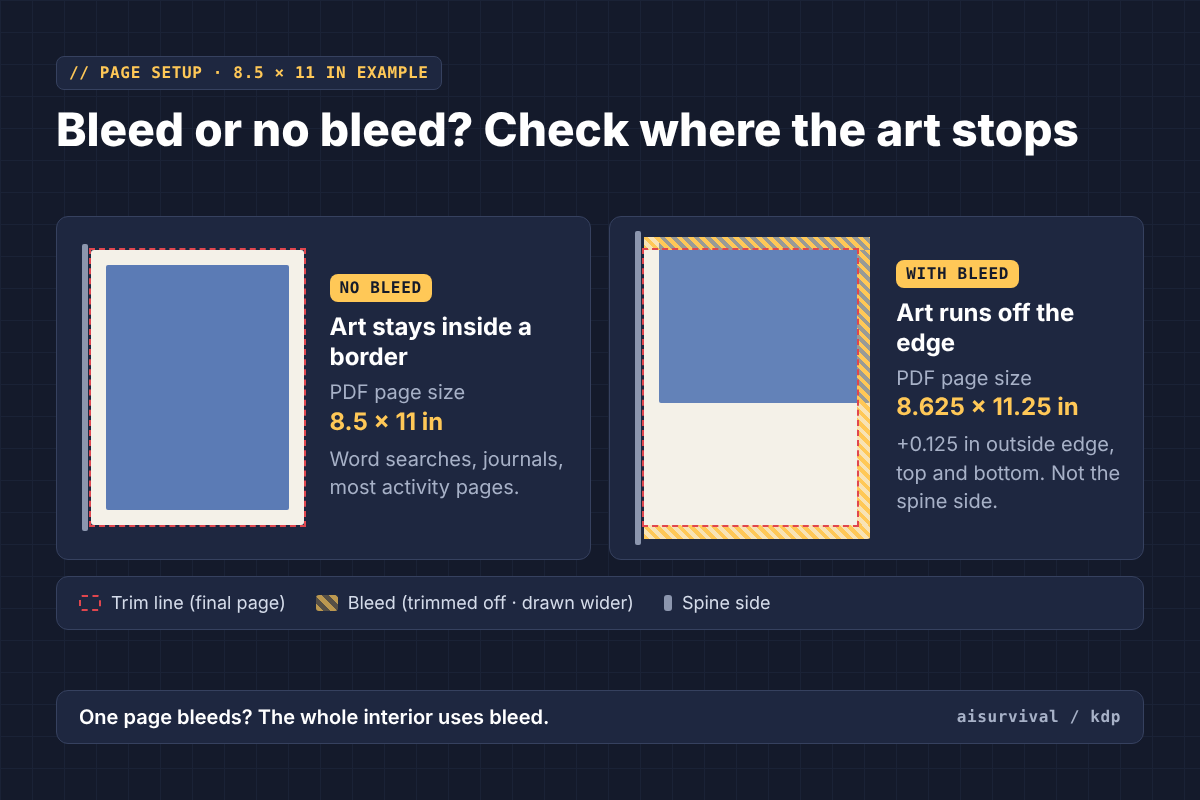
No bleed means all text and artwork stay inside the trimmed page, leaving a safe margin. It is often a straightforward choice for word searches, journals, and activity pages with white borders. Bleed is necessary when a background or illustration is intended to print all the way to an outer page edge.
For a concrete example, an 8.5 × 11 inch no-bleed interior uses pages measuring 8.5 × 11 inches. With bleed, the print-ready PDF page becomes 8.625 × 11.25 inches: add 0.125 inch to the width for the outer edge, and 0.125 inch to both the top and bottom. The extra width is not added to both sides of the page. See KDP’s trim, bleed, and margins guide.
Margins depend on the page count
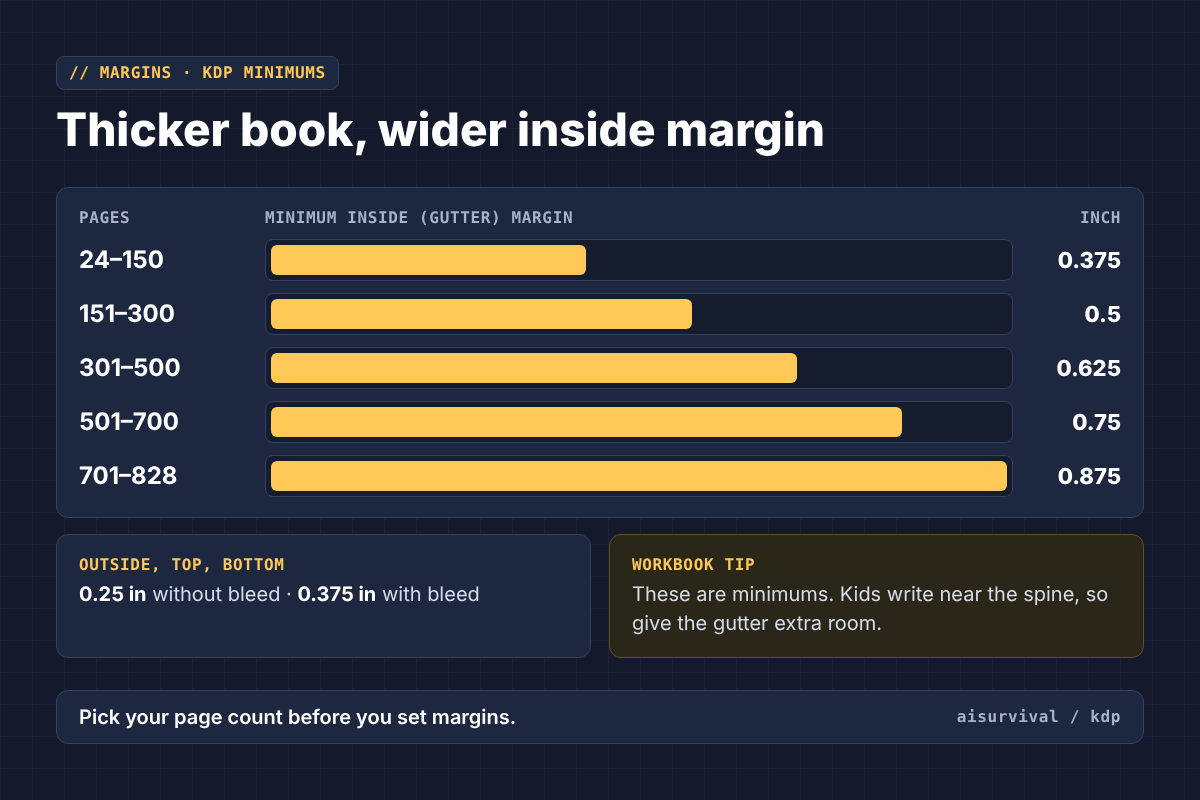
Do not apply one universal gutter measurement to every paperback. KDP increases the minimum inside margin for thicker books. For a 24–150 page paperback, its minimum inside margin is 0.375 inch; for 151–300 pages it is 0.5 inch. The outside minimum is 0.25 inch without bleed and 0.375 inch with bleed. These are minimums, not necessarily the most comfortable reading margins.
For workbooks, test whether the reader can write near the binding without losing usable space. A technically compliant layout can still be inconvenient. See the official paperback submission guidelines for the full page-count table.
Export a file that survives print preview
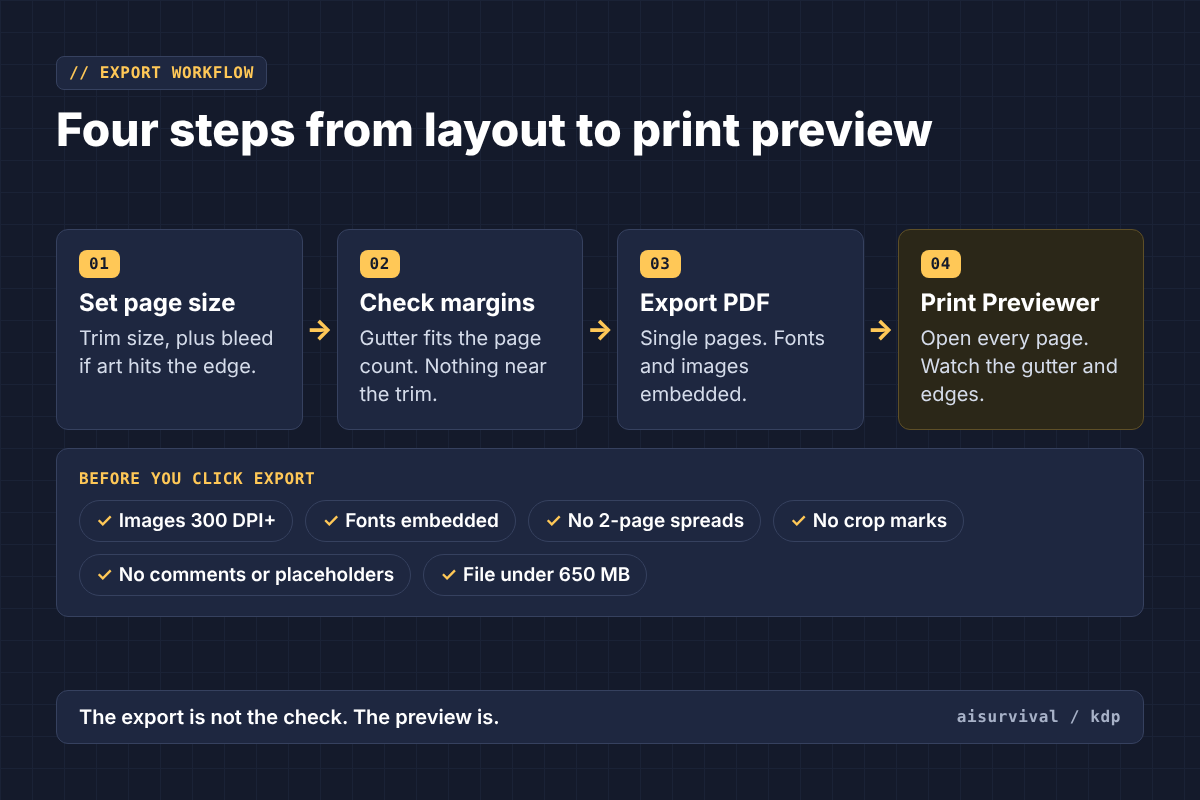
- Use a print-ready PDF for a predictable workflow; a PDF is required for bleed interiors.
- Use high-resolution images: KDP specifies at least 300 DPI for manuscript and cover images.
- Embed fonts and images in the native file before export.
- Export single pages, not two-page spreads.
- Remove crop marks, annotations, comments, and placeholder text before submission.
- Check file size: KDP’s manuscript file limit is 650 MB.
The PDF export is not the final quality check. Upload it to KDP, open the Print Previewer, and inspect every page, especially the first and last pages, the gutter, and any artwork near the edges. KDP’s Save Your Manuscript File guide explains accepted formats and common file errors.
A practical example: an 8.5 × 11 inch puzzle workbook
Suppose you are creating a 100-page black-and-white puzzle workbook with a white background and no edge-to-edge artwork. You could start with an 8.5 × 11 inch no-bleed interior, keep the puzzle grid comfortably away from the binding, and export a print-ready PDF. At 100 pages, consult the 24–150 page gutter category, but consider adding more room than the minimum where children will write.
Now imagine you add a full-page colored illustration that reaches the outer edge on one page. The interior must use bleed settings throughout the file, not just on that illustration. Recheck the dimensions and margins before exporting. If you want a text-heavy novel rather than a designed workbook, Kindle Create may simplify formatting, but its paperback layout controls and bleed-image support are limited.
Copy-and-paste AI preflight prompt
Use this prompt as a planning aid, not as a substitute for the current official specifications.
Prompt: Check my KDP paperback setup (replace the brackets)
I am preparing a [trim size] paperback with [page count] pages.
My interior contains [edge-to-edge art or inset art].
My printing choice is [black ink or color].

Make a preflight checklist for trim, bleed, margins, PDF export, fonts, image resolution, and print preview.
Separate official KDP requirements from optional design advice.
Do not invent measurements. Flag anything that requires checking against the current KDP help pages.
The final pre-upload checklist
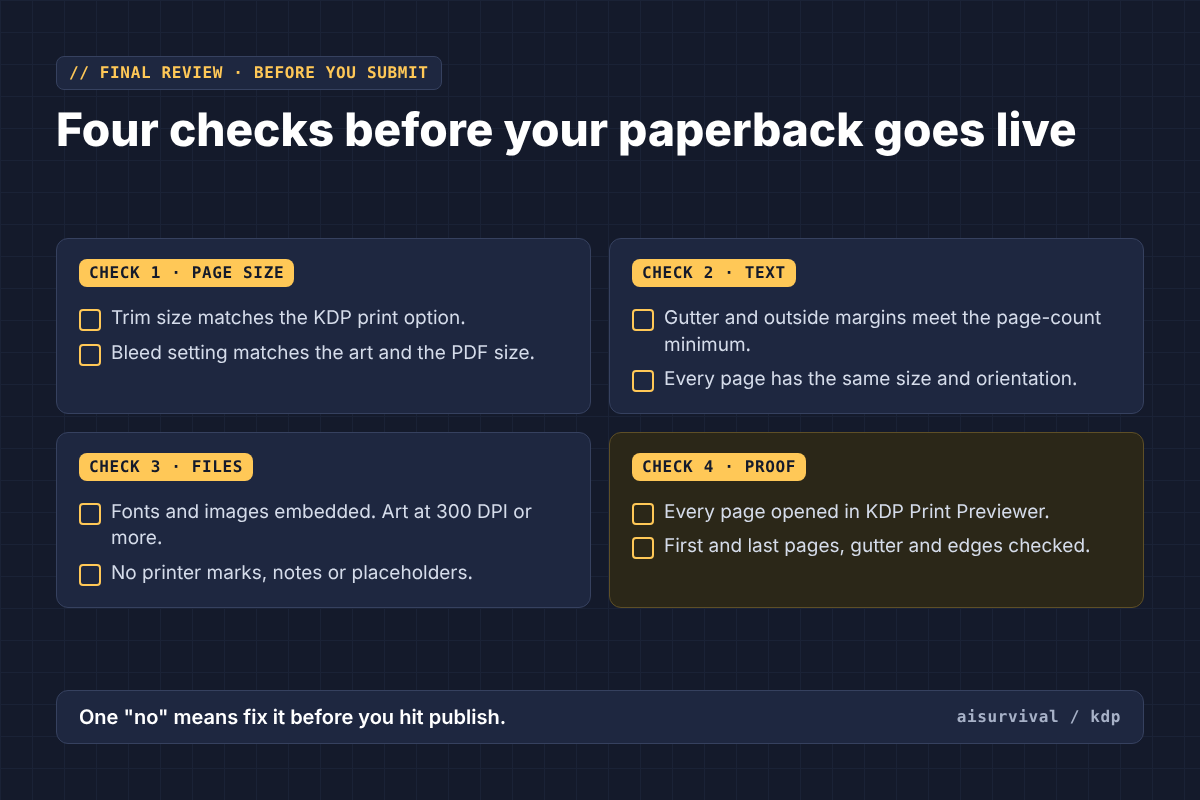
- Trim size matches the selected KDP print option.
- Bleed setting matches the actual artwork and the PDF page size.
- Gutter and outside margins meet the page-count requirements.
- All pages have a consistent size and orientation.
- Fonts and images are embedded; artwork is at least 300 DPI.
- The PDF has no printer marks, annotations, or placeholders.
- Every page has been inspected in KDP Print Previewer.
Common questions
Do all paperbacks need bleed? No. Covers require bleed, but the interior may be designed without it if the artwork does not reach the trimmed edge.
Is PDF always required? KDP accepts several no-bleed manuscript formats, but bleed interiors must be uploaded as PDF. PDF is a useful default for layout-heavy books.
Can I use Kindle Create for a coloring book? It is primarily intended for text-heavy, simple layouts. For image-heavy workbooks and edge-to-edge artwork, a separate layout workflow is usually more suitable.