
QUICK ANSWER
To turn one blog post into Pinterest Pins with AI, ask an AI chat for five different angles from the post, design each as a tall 2:3 image (1000 x 1500 pixels is Pinterest’s recommended size), write a keyword-rich title and description for each, and link every Pin back to the post. Four tools cover the job: an AI chat for the words, Canva for the design, Pinterest’s own bulk and RSS tools, and Metricool for scheduling across platforms. You can start for free with all four.
Series: AI tools compared, part 2 of 30. Part 1 was 7 ways to make infographics with AI. Prices and plan details below were checked on the official pages on November 2, 2026.
On this page
- Why turn a blog post into Pins
- What a Pin needs
- The workflow: one post, five Pins
- The 4 tools compared
- Copy-and-paste prompts
- Example (fictional)
- Limits
- FAQ
Why turn a blog post into Pins
A blog post only gets found if someone searches for it. A Pin gives the same post a second door. People use Pinterest to search for ideas and save them for later, and every Pin can link straight to your post.
The catch is volume. One Pin per post rarely does much. Different headlines and images reach different searches, so the usual approach is several Pins per post, spread out over time. That’s exactly the repetitive part AI handles well.
What a Pin needs
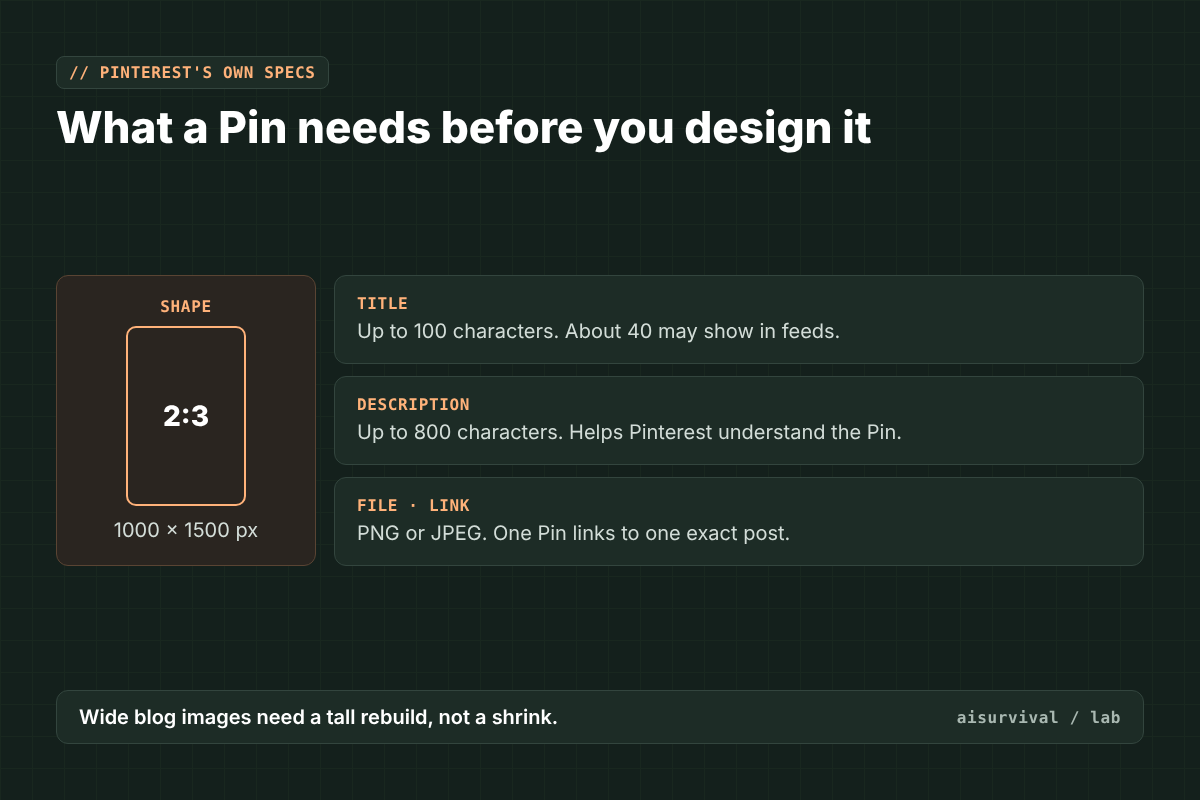
Pinterest’s own product specs set the basics for a standard image Pin:
| Item | Pinterest’s spec | What it means for you |
|---|---|---|
| Shape | 2:3, or 1000 x 1500 pixels recommended | Tall images. Taller than 2:3 may get cut off in feeds. |
| File | PNG or JPEG | Export as PNG for text-heavy designs. |
| Title | Up to 100 characters | Only about the first 40 may show in feeds, so lead with the keyword. |
| Description | Up to 800 characters | Not shown in the feed, but it helps Pinterest understand the Pin. |
| Link | Your post URL | One Pin, one link. Point it at the exact post. |
One thing to notice: most blog images are wide. A 3:2 blog infographic won’t work as-is. Rebuild it as a tall image instead of shrinking it.
The workflow: one post, five Pins
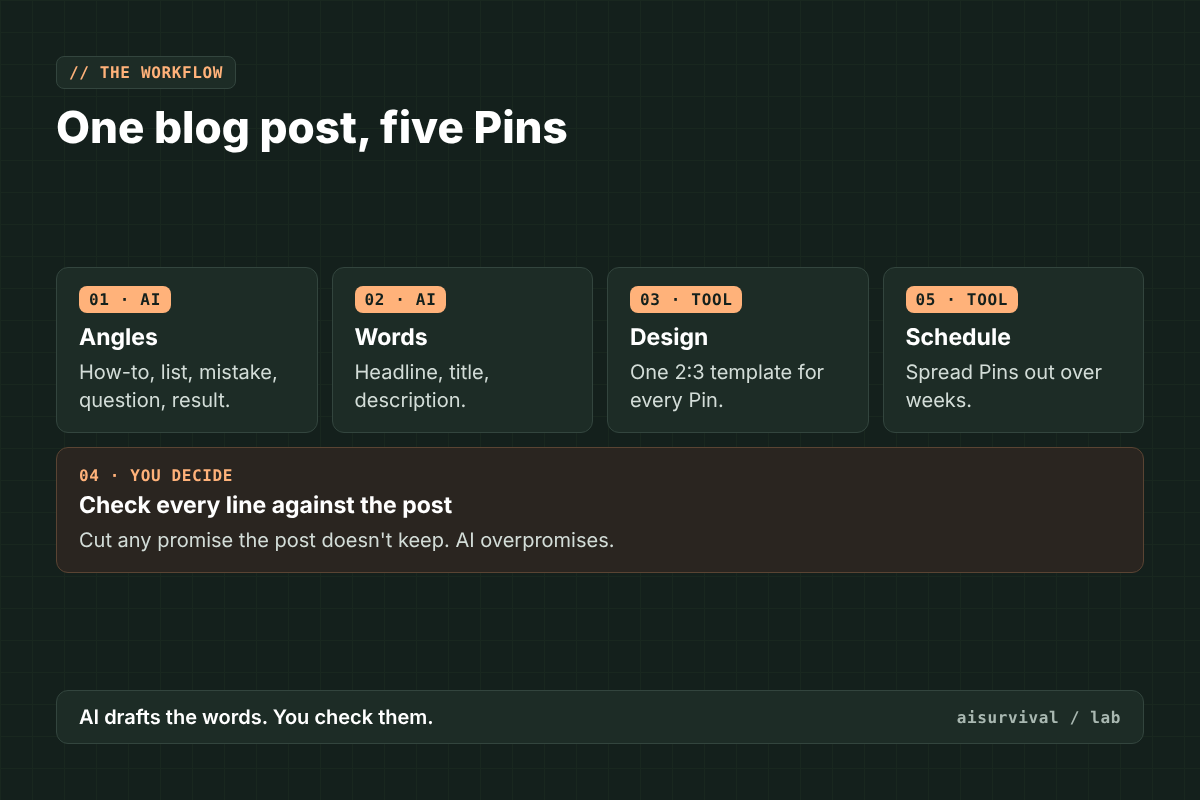
- Pick the angles. Paste your post into an AI chat and ask for five different reasons someone would click: a how-to, a checklist, a mistake to avoid, a question, a quick result.
- Write the words. For each angle, get a short headline for the image, a Pin title that starts with the keyword, and a description in plain sentences.
- Design. Put each headline on a 2:3 template. Keep one font and one color set so your Pins look like a set.
- Check. Read every title and description against the post. Cut anything the post doesn’t actually say.
- Publish or schedule. Post one now, spread the rest over the following weeks, each linking to the same post.
Step 4 is the one people skip. AI is happy to promise “10 free templates” when your post has one. A Pin that overpromises gets clicks once and loses trust.
The 4 tools compared
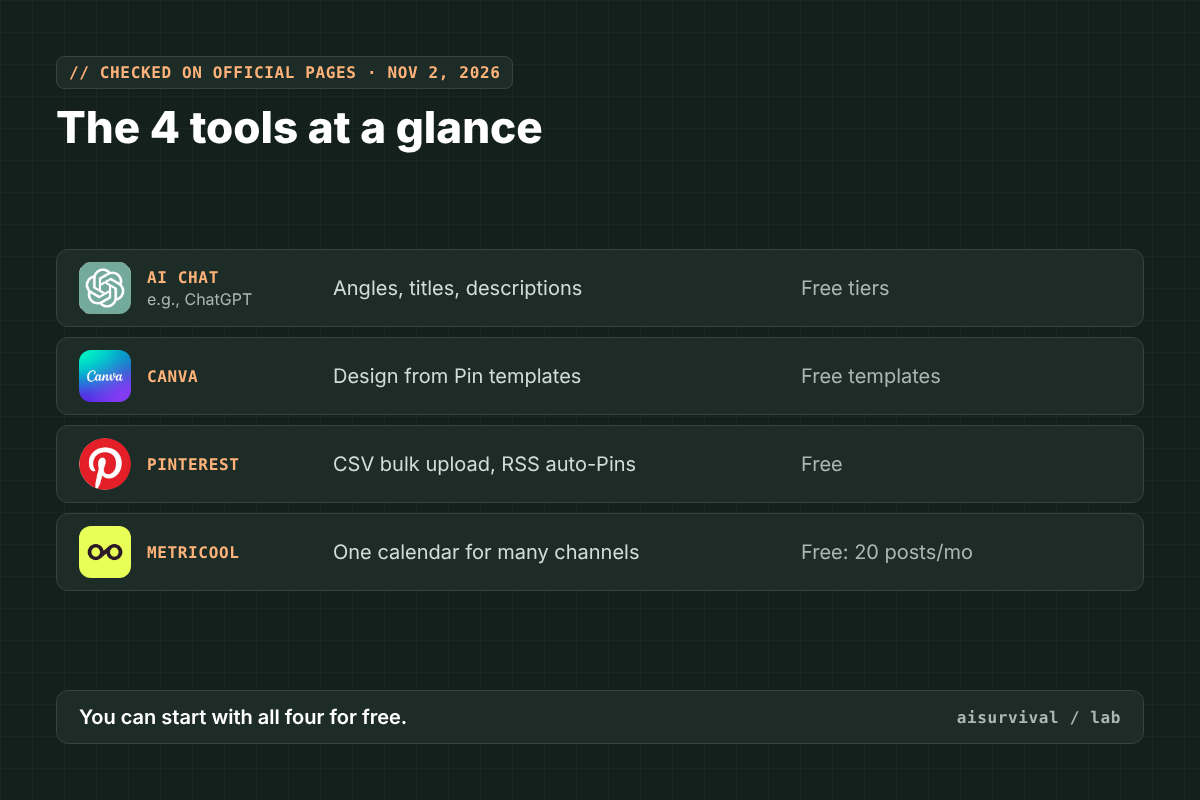
| Tool | What it does in this workflow | Free option | Paid from |
|---|---|---|---|
| AI chat (ChatGPT, Claude, Gemini) | Angles, headlines, titles, descriptions | Free tiers available | Varies by tool |
| Canva | Design from Pinterest Pin templates | Free, customizable Pin templates | Check Canva’s pricing page |
| Pinterest bulk and RSS tools | Create Pins from a CSV file, or auto-create Pins from your blog feed | Free | Free |
| Metricool | Schedule Pinterest alongside other social accounts | Free plan: up to 20 scheduled posts a month | $20/month billed annually (Starter) |
1. An AI chat: for the words
Any major AI chat can read your post and draft angles, titles, and descriptions. It’s the cheapest part of the workflow and the one that needs the most checking. Use the prompts below so it sticks to what your post says.
2. Canva: for the design
Canva has a large library of free, customizable Pinterest Pin templates already sized for Pinterest. Pick one template, make it yours once, and reuse it for every post so your Pins are recognizable.
3. Pinterest’s own bulk and RSS tools
Pinterest can do more on its own than most people realize. According to Pinterest Create, you can upload a CSV file to create up to 200 Pins at once, with titles, descriptions, links, and boards. You can also connect an RSS feed so Pinterest creates image Pins from new posts automatically, usually within 24 to 48 hours. RSS auto-publishing needs a business account and a claimed website, and both tools are desktop only.
If your blog runs on WordPress, it already has a feed. One downside: auto-created Pins use the images in your post, which are often wide. Designed Pins usually look better.
4. Metricool: one calendar for every channel
Metricool schedules posts across several social platforms from one calendar. The free plan allows up to 20 scheduled posts a month, and paid plans start at $20 a month billed annually. Its plan page doesn’t spell out Pinterest support on the free plan, so check that before you commit. Good fit if Pinterest is one of several channels.
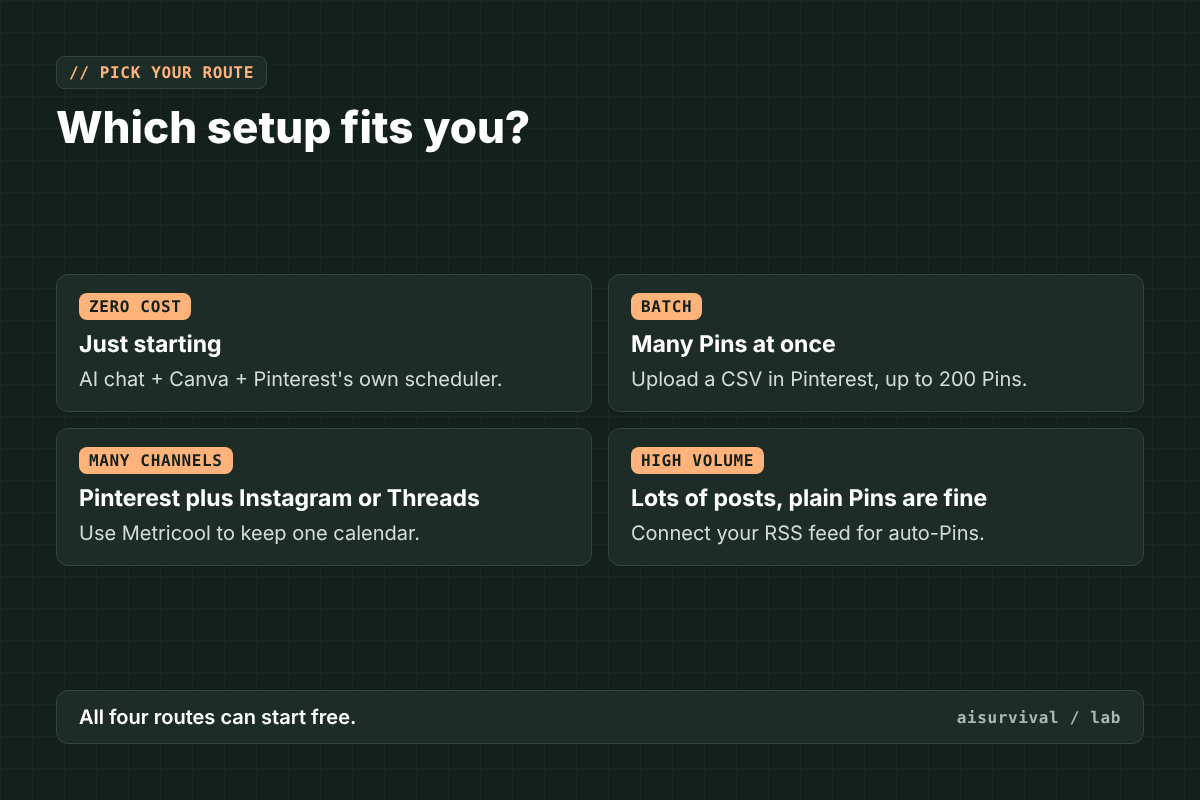
Which route? Just starting and want zero cost: AI chat + Canva + Pinterest’s own scheduler. Lots of Pins at once: Pinterest’s CSV bulk upload. Running Pinterest plus Instagram or Threads: Metricool keeps them on one calendar. Publishing a lot and okay with plain Pins: RSS auto-publishing.
Copy-and-paste prompts
How to use these:
- Copy your blog post text (or the key sections).
- Run Prompt 1 to get five angles.
- Pick the angles you like and run Prompt 2 for the words.
- Check every line against your post.
- Put the image headlines into your design template.
Tip: tell the AI your main keyword. Otherwise it’ll invent clever titles nobody searches for.
Prompt 1: Five Pin angles from one post
Here is my blog post: [paste text]
Main keyword: [keyword]

Give me 5 different Pinterest Pin angles for this post:
1. How-to
2. Checklist or list
3. Mistake to avoid
4. Question
5. Quick result or before/after

For each angle, write one line on why someone would click.
Only use ideas that are actually in my post. Do not promise anything the post doesn't contain.
Prompt 2: Image headline, title, and description
For each angle below, write:
- Image headline: 8 words or fewer
- Pin title: under 100 characters, starting with the main keyword
- Description: 2 to 3 plain sentences, under 500 characters, including the keyword once

Angles: [paste the angles you chose]
Main keyword: [keyword]
Post URL: [url]

Rules: no hashtags, no clickbait, no claims that aren't in the post.
Example (fictional)
Everything here is made up for illustration.
A small baking blog has a post called “Sourdough Starter for Beginners.” Main keyword: sourdough starter. Prompt 1 returns five angles. The blogger keeps three:
| Angle | Image headline | Pin title |
|---|---|---|
| How-to | Your First Sourdough Starter in 7 Days | Sourdough Starter for Beginners: A 7-Day Guide |
| Mistake | Why Your Starter Isn’t Bubbling | Sourdough Starter Not Rising? 4 Common Beginner Mistakes |
| Checklist | Starter Checklist: 5 Things You Need | Sourdough Starter Supplies: A Simple Beginner Checklist |
The AI’s fourth title promised “a free printable schedule.” The post doesn’t have one, so it was cut. Three Pins, one Canva template, one link, spread over three weeks.
Quick checklist:
☐ Every Pin is 2:3.
☐ Every title starts with the keyword.
☐ Every claim is in the post.
☐ Every Pin links to the exact post.
☐ Pins share one template so they look like a set.
☐ Pins are spread out, not posted all at once.
Limits
- Plans and prices change. They’re as listed on the official pages on November 2, 2026. Check before you pay.
- This is a comparison from official documentation, not a hands-on performance test. Results depend on your niche and content.
- AI-written titles can sound generic. Read them out loud and rewrite the dull ones.
- Only pin images you have the rights to use.
- Product names and logos belong to their owners and are shown only to identify each tool. This post isn’t sponsored, and no company here reviewed or endorsed it.
FAQ
What size should a Pinterest Pin be?
Pinterest recommends a 2:3 ratio, or 1000 x 1500 pixels. Taller images may get cut off in feeds.
Can I create Pins automatically from my blog?
Yes. Pinterest can auto-create image Pins from your blog’s RSS feed if you have a business account and have claimed your website.
How many Pins should I make per blog post?
There’s no official number. Start with three to five different angles per post, spread out over a few weeks, and keep the ones that get clicks.
Is there a free way to do all of this?
Yes. A free AI chat, Canva’s free Pin templates, and Pinterest’s own scheduling and bulk tools cost nothing. Metricool also has a free plan with a monthly limit.
Series: AI tools compared, part 2 of 30. Previous: 7 ways to make infographics with AI.
Next in this series: AI product description writers, six tools compared on the same brief. Subscribe if you’d like it in your inbox.
Your turn: Which Pin angle works best for your posts? Tell us in the comments. Your answers shape future guides.